Application Service Overview
When navigating to a specific application service within an environment, you will find detailed information organized into the following tabs.

Details
The Details tab displays the complete configuration of the deployed service:
- Basic information — Service name, source type, branch, container registry, image tag, and deployment status.
- Deployment YAML — The rendered Kubernetes manifest for the service.
- Environment variables — All configured key-value pairs (secret values are masked unless you have the View secret permission).
- Resource configuration — CPU/memory requests and limits, node group assignment.
- Networking — Service port, endpoint type, domain, ingress settings.


Pipelines
The Pipelines tab shows the CI/CD workflow history for the service.
- Workflow list — All workflows linked to this service, with their current status.
- Workflow details — Click on a workflow to see the structured overview from source to deployment, including build, test, and deploy stages.
- Execution history — View all past executions with execution ID, trigger time, triggered by (user), and status.

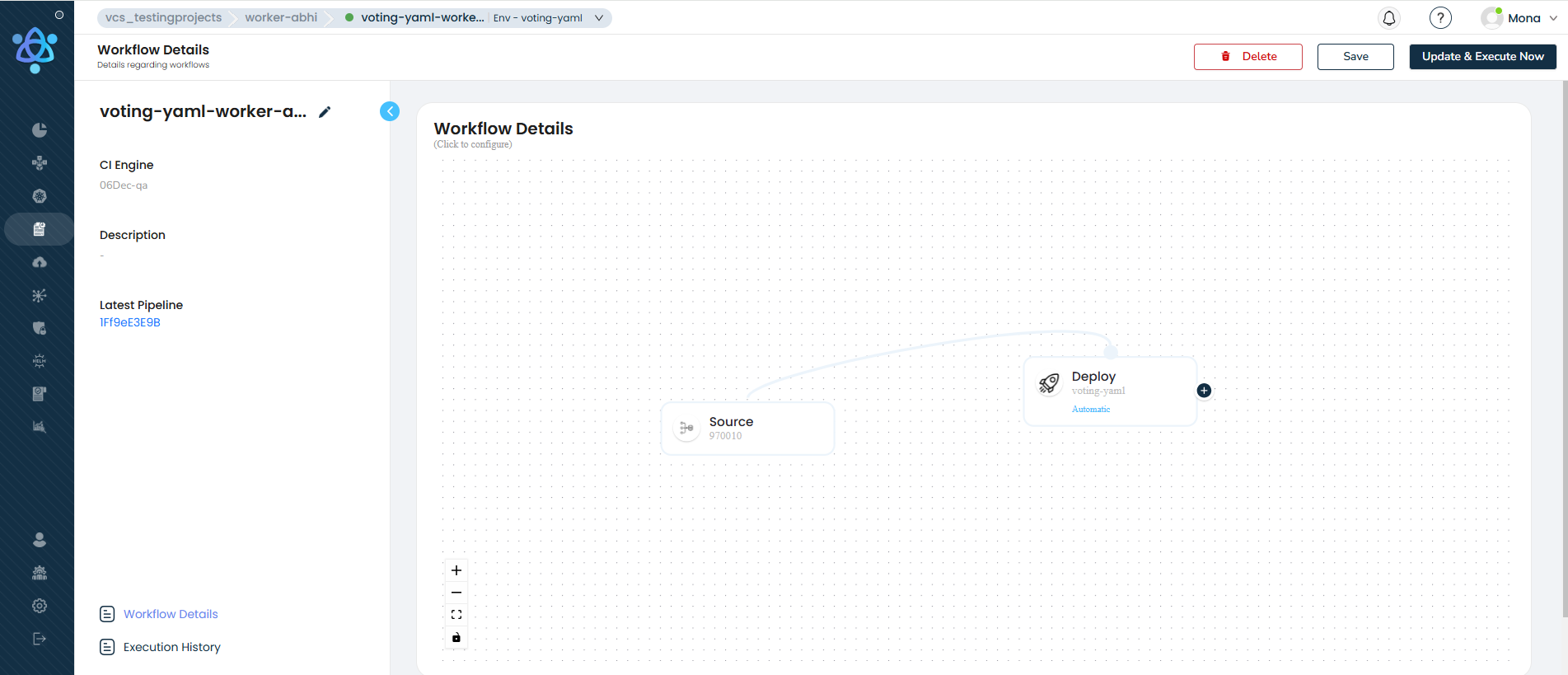

Latest Pipeline
The Latest Pipeline section provides detailed information about the most recent workflow execution:
| Field | Description |
|---|---|
| Log Type | The pipeline stage (build, deploy, etc.). |
| Build Number | The sequential build number. |
| Creator | The user or trigger that initiated the pipeline. |
| Status | Current status (Pending, Running, Success, Failed). |
| Commit ID | The Git commit SHA that triggered the build. |
| Tags | Image tags produced by the build. |


Re-deploy (Rollback)
From the Pipelines tab, you can re-deploy a previous successful pipeline release to roll back to an earlier version of your service.
- Locate the successful pipeline execution you want to roll back to.
- Click the Re-deploy button next to that execution.
- Confirm the environment, service, and image tag in the confirmation popup.
- The service will be re-deployed with the selected image tag.
You cannot re-deploy while another pipeline is already running for the same service. Wait for the current pipeline to complete first.
Events
The Events tab shows Kubernetes events related to the service, providing visibility into what is happening at the cluster level.
| Column | Description |
|---|---|
| Type | Event type (Normal, Warning). |
| Reason | The Kubernetes event reason (e.g., Scheduled, Pulled, Started, Failed). |
| Source | The Kubernetes component that generated the event. |
| Pod Name | The pod associated with the event. |
| Timestamp | When the event occurred. |

Pods
The Pods tab provides details about all pods running for this service.
| Column | Description |
|---|---|
| Container Name | Name of the container within the pod. |
| Image | The container image and tag running in the pod. |
| Restarts | Number of container restarts. |
Pod Logs
Click on a pod to view its real-time logs. The log viewer provides:
| Feature | Description |
|---|---|
| Tail Lines | Select how many recent log lines to display (100, 200, or 500). |
| Container Selector | Choose which container's logs to view (for multi-container pods). |
| Real-time Streaming | Logs update in real-time as new entries are generated. |
| Search | Search within the displayed logs. |

Datasource Logs
For datasource services (databases), you can stream real-time logs directly from within the environment view. This is supported for both self-managed databases (running as pods) and cloud-managed databases (RDS, Aurora, ElastiCache).
Navigate to the datasource service within the environment to access its logs.
Services Overview Filtering
The Services Overview page supports advanced filtering to help you quickly find services:
Application services:
| Filter | Description |
|---|---|
| App Name | Search by service name. |
| Health Status | Filter by one or more health statuses (Healthy, Degraded, Missing, etc.). |
| Workflow Status | Filter by pipeline status (Pending, Running, Success, Failed). |
| Workflow Name | Search by linked workflow name. |
Datasource services:
| Filter | Description |
|---|---|
| Name | Search by datasource name. |
| DB Type | Filter by database type (MySQL, PostgreSQL, Redis, etc.). |
| Job Status | Filter by provisioning job status. |
Active filters are displayed as chips above the services table. You can combine multiple filters simultaneously.
Service Actions
From the service detail view, use the dropdown in the top-right corner to perform actions:
| Action | Description |
|---|---|
| Update | Modify the service configuration and re-deploy. |
| Start / Stop | Scale the individual service up or down. See Start & Stop Service. |
| Delete | Remove the service from the environment. |
| View YAML | View the rendered Kubernetes YAML manifest. |