Provisioning & Managing Resources
This page covers creating new cloud resources, importing existing ones, understanding cost estimates, using blueprints, and the lifecycle actions available on a resource.
Every create, update, and import is evaluated against your organization's policies before it proceeds.
Provisioning a New Resource
From the Resources tab, click New resource (or use Resource Actions → Create Resource). Provisioning is a three-step wizard:
Step 1 — Type & Basics
Choose the cloud account, the resource type, and a name for the resource.
Step 2 — Configuration
Fill in the resource's settings. Fields are specific to each resource type and split into a basic set (always shown) and an Advanced section (collapsible).
Where a field references existing cloud infrastructure — VPCs, subnets, subnet groups, security groups, KMS keys, AMIs, key pairs, instance classes — Atmosly provides discovery pickers that list the real options from your selected account and region. Related fields cascade (for example, choosing a database engine filters the available engine versions and instance classes).
Step 3 — Review & Submit
Review the full configuration. This step shows:
- The estimated monthly cost for the resource
- The policy evaluation — any policy that would block or warn on this configuration is surfaced here before you submit
Click submit to provision. The request is accepted and tracked asynchronously — Atmosly reports "Provision request accepted — tracking cloud-side creation" and takes you to the resource detail page, which polls until the resource reaches a settled state.
The new-resource form auto-saves a draft in your browser. If you leave and come back, you'll be offered the option to Resume previous draft.
Other ways to start
- Clone — start from an existing resource's configuration (the identifier is suffixed with
-cloneand secrets are cleared). - Create from Blueprint — start from a published blueprint, which pre-fills the configuration and prompts you only for the inputs the blueprint requires.
Importing an Existing Resource
To bring a resource that already exists in your cloud account under Atmosly management, click Import existing (or Resource Actions → Import Resource).
Importing is non-destructive — Atmosly reads the resource's current configuration and starts tracking its drift, cost, and policy compliance from that point forward. It does not modify the resource.
The flow is: Cloud account → Region → Resource type → Atmosly name + Identifier. For supported types, the identifier field is a discovery picker; otherwise you enter it manually.
Imported resources are read-only within Atmosly — you can view, clone, and track them, but Edit and Delete are not available. To stop tracking one, use Remove from Atmosly, which deletes only the Atmosly record. No cloud infrastructure is modified or deleted.
Cost Estimates
Provisionable resources show an Estimated Monthly Cost based on your selected type, region, and configuration. The estimate appears on the Review step, on the resource detail page, and on blueprints.
The estimate breaks cost down by component (compute, storage, provisioned IOPS, backup, and so on). Usage-based resources are shown as Pay-per-use rather than a fixed figure.
Estimates use public on-demand pricing and do not account for Reserved Instances, Savings Plans, data-transfer/egress, or other discounts. Treat them as a planning guide, not a bill. Estimates are cached for a short period, so a cached badge may appear.
Managing a Resource
Open any resource to see its detail page, which organizes information into tabs — Configuration, Metadata, History, Policies, and (when relevant) Drift.
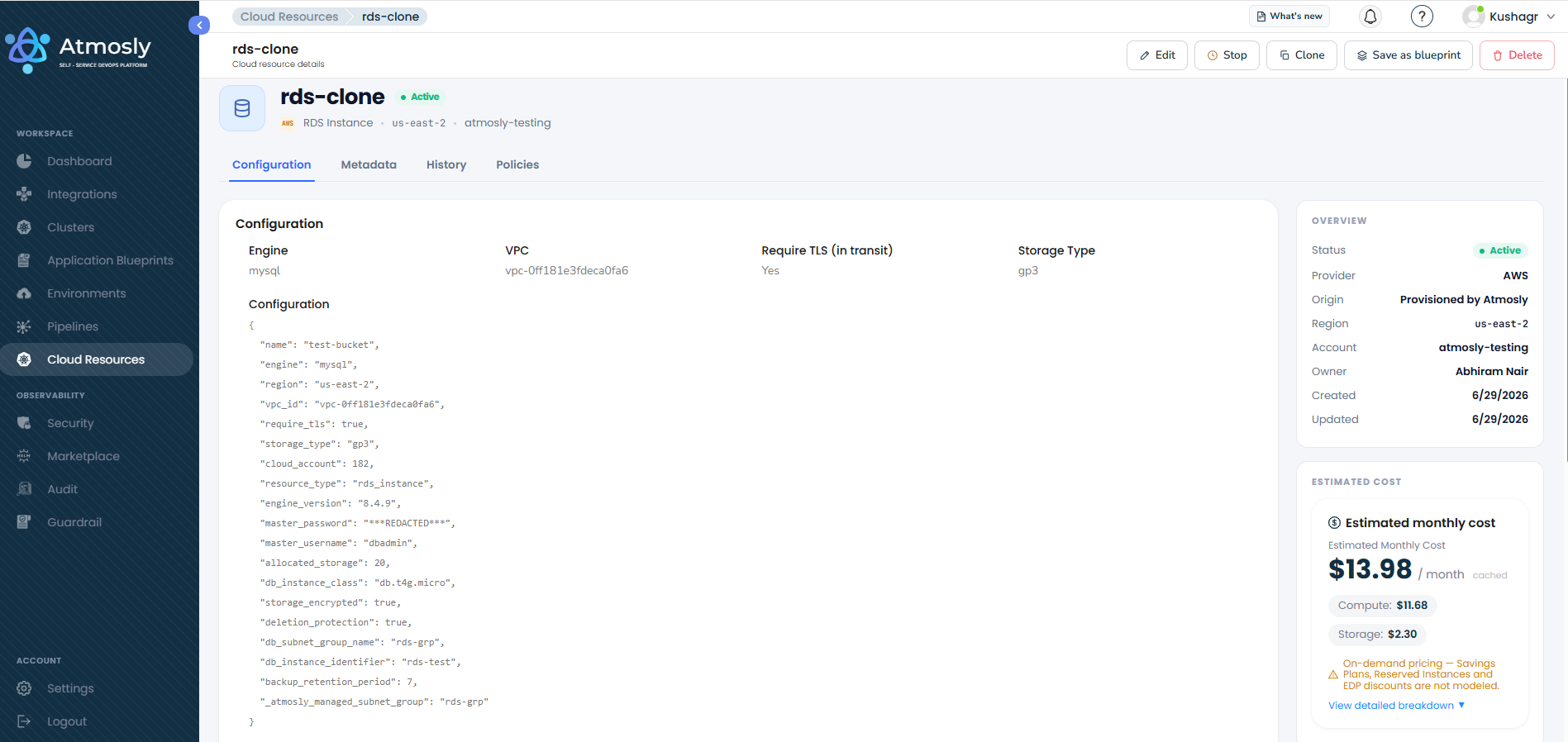
Available actions depend on the resource's current status and your permissions:
| Action | What it does |
|---|---|
| Edit | Update configuration or tags. Available when the resource is Active, or in a Failed / Drift Detected / Rejected state. |
| Stop / Start | Pause or resume stoppable resources (RDS, Aurora, EC2). Note: AWS automatically restarts a stopped RDS/Aurora instance after 7 days. |
| Delete | Delete the resource from your cloud account. This cannot be undone. A Force Delete variant is available for resources stuck due to deletion protection or a failed state. |
| Clone | Create a new resource from this one's configuration. |
| Save as Blueprint | Turn this resource's configuration into a reusable blueprint. |
| Approve / Reject | Approve or decline a resource that a policy has routed for review (see approval policies). |
Some resources can be given an expiry (TTL) so they auto-delete after a set time, with a limited number of extensions available from the detail page.
Atmosly periodically reconciles each resource against your cloud account. If the live configuration diverges from what Atmosly recorded, the resource is flagged Drift Detected and a Drift tab appears showing the differences.
Blueprints
A blueprint is a reusable, pre-approved provisioning template that your platform team publishes so others can provision consistent resources quickly. Blueprints live under the Blueprints tab in Cloud Resources.
A blueprint stores default configuration, default tags, allowed regions, and a set of inputs the consumer must provide. Each field behaves in one of three ways:
| Behavior | Meaning |
|---|---|
| Template default | The blueprint author sets a reusable default value. |
| Consumer input | A per-instance value (such as an identifier or a database master password) that the consumer must supply. Secrets are never stored in the blueprint. |
| Discovery | An account-scoped value (VPC, KMS key, etc.) that is hidden in the blueprint and picked at provision time against the target account. |
Using a blueprint
From the Blueprints catalog, click Use on a blueprint to open the create wizard pre-filled with its defaults — you only fill in the required inputs. A resource created this way records "Provisioned from blueprint <name> v<n>" on its detail page and flags you when a newer blueprint version is available.
Versioning
Blueprints are versioned. The Version History drawer lists every version newest-first, each marked Active or Archived, with its changelog, author, and dates. You can View snapshot to inspect a past version's configuration.
Restoring a past version does not overwrite history — it creates a new active version with that version's content, so the full audit trail is preserved. Restoring requires the Change Blueprint permission.